Add Mail Account
-
- Select the settings icon on your home screen

- Select Mail
- Select Accounts
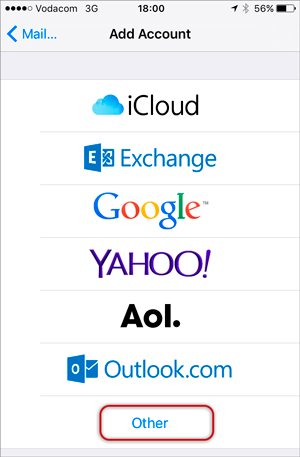
- Select Add Account
- Select Other from the menu
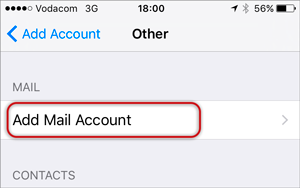
- Select Add Mail Account
- Select the settings icon on your home screen
Enter your account information
Enter your Name, Email & Password > Next
-
- Forgotten passwords can be reset in your Control Panel

Configure Incoming and Outgoing Servers
Select IMAP (default) or POP according to your needs (See POP vs IMAP)
-
- Scroll down to Incoming Mail Server and enter all the relevant details, then do the same for Outgoing Mail Server, as in the screen below and then select Next.
- Host Name:
- Incoming mail server: has mail. before the domain name e.g. mail.example.com*
- Outgoing mail server: has mail. before the domain name e.g. mail.example.com*
- Ensure that User Name is the full email address
- User Name & Password are the same for both Incoming & Outgoing servers
- Host Name:
- Scroll down to Incoming Mail Server and enter all the relevant details, then do the same for Outgoing Mail Server, as in the screen below and then select Next.

Click Save
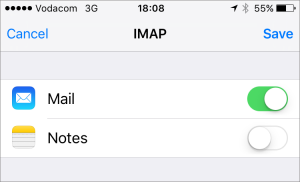
You have completed your account setup.
Congratulations! You have now successfully configured your email account on your iPhone.