Category: Our Products

  • How to login to your WHM

    There are two ways to login to your WHM:

    Through your Texo Client Area:

    1. Login to the Texo Client Area
    2. Click on Services > My Services
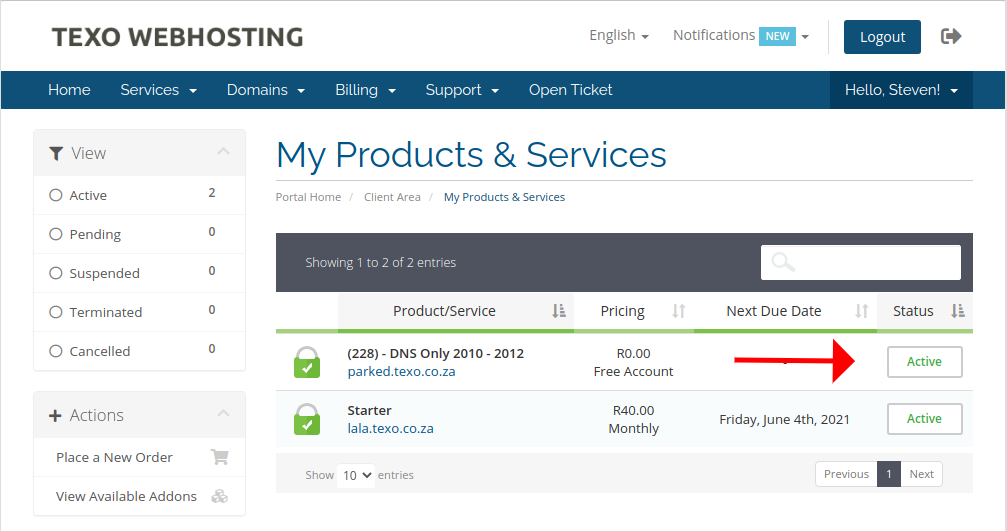
    3. Click on the green ACTIVE button next to the correct hosting account
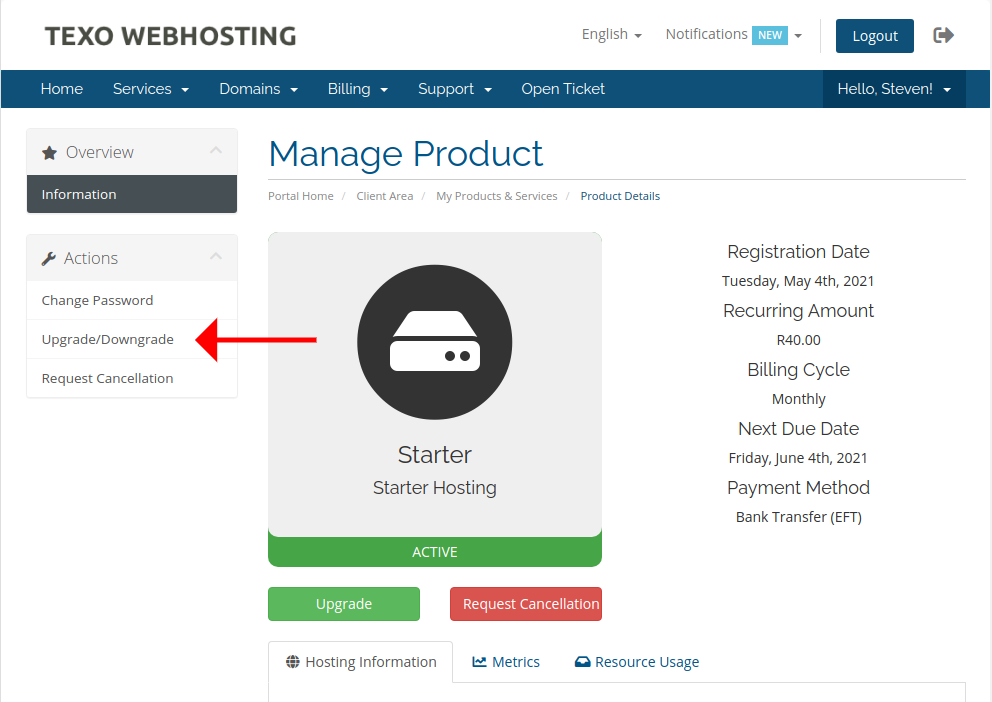
    4. Click on the Login to WHM link in the left menu

    Directly:
    your WHM is always located at yourdomain.co.za/whm

    (replace yourdomain.co.za with the correct domain)

    You can find the username and password in the New Account Email that was sent to you when you signed up, and also in your Texo Client Area:

    1. Login to the Texo Client Area
    2. Click on Services > My Services
    3. Click on the green ACTIVE button next to the correct hosting account
    4. Your cPanel/WHM username and password are displayed at the top of the page

  • How to login to your Control Panel

    There are two ways to login to your cPanel:

    Through your Texo Client Area:

    1. Login to the Texo Client Area
    2. Click on Services > My Services
    3. Click on the green ACTIVE button next to the correct hosting account
    4. Click on the Login to cPanel link in the left menu

    Directly:
    your cPanel is always located at yourdomain.co.za/cpanel

    (replace yourdomain.co.za with the correct domain)

    You can find the username and password in the New Account Email that was sent to you when you signed up, and also in your Texo Client Area:

    1. Login to the Texo Client Area
    2. Click on Services > My Services
    3. Click on the green ACTIVE button next to the correct hosting account
    4. Your cPanel username and password are displayed at the top of the page
  • How to register a new domain

    Registering a domain is part of the process when ordering a hosting package. However, if you would like to register additional domains to use in future, or to use as Aliases (Parked Domains) then please do as follows:

    1. Log into your Texo Client Area
    2. Click on Domains > Register a New Domain

    and complete the ordering process. Once you payment is processed (immediately if paying by credit card (PayFast or PayPal) or when your payment reflects in our bank account if paying by EFT) your new domain will be registered in your name, and will go live within an hour or so.

    Note: .co.za domains do not go live if they do not have valid DNS entries. If you do not order a hosting package for yor new domain, or add it to an existing hosting package as an Alis (Parked Domain) then it will not go live. The Registry will check for valid DNS entries every few hours for a week, and then stop checking.

    If that happens, then you will have to resubmit the domain’s nameservers in your Texo Client Area:

    1. Click on Domains > My Domains
    2. Click on the green ACTIVE button next to the domain
    3. Click on Nameservers in the left menu
    4. Click the Change Nameservers button (without changing any other settings unless you want to use nameservers belonging to a different webhost)
    5. The Registry will now check the nameservers for your domain’s DNS entries and, if successful, the domain will go live within an hour.