How to set up email in Windows 8 Mail
User Name :
Your user name is your full email address
Incoming Server : mail.yourdomain.co.za
Ports : IMAP 993 / POP 995
Outgoing Server : mail.yourdomain.co.za
Port : SMTP 465
Encryption: SSL/TLS
Replace example.com with your domain name
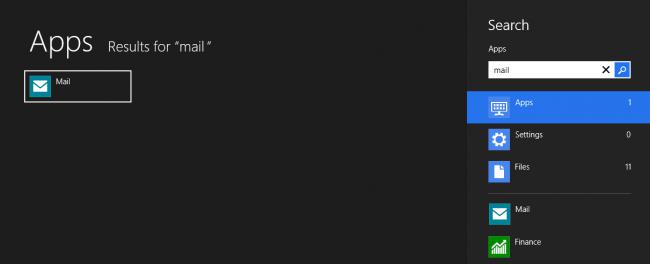
- Search for Mail and launch the Mail app
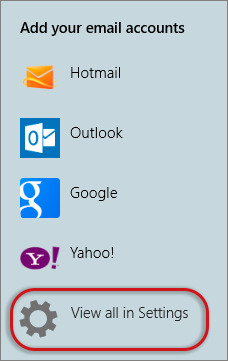
- Select View all in Settings from the bottom left of the screen
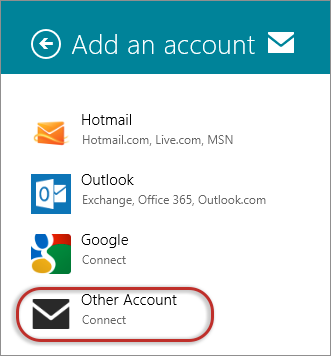
- Select Other Account
- Then select Show more details
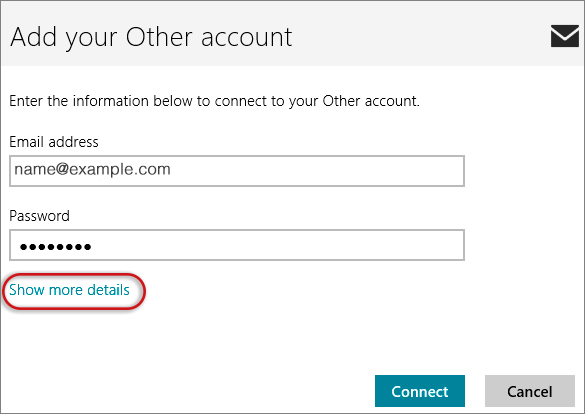
- Add your information
- Username is the full email address
- Password – forgotten passwords can be reset in your control panel
- Incoming (IMAP) email server starts with mail. followed by your domain name e.g. mail.example.com*
- Port is 993
- Incoming server requires SSL is ticked
- Outgoing (SMTP) email server starts with mail. followed by your domain name e.g. mail.example.com*
- Port is 465
- Incoming server requires SSL is ticked
- The last 2 checkboxes are ticked
- > Connect

- Your Windows 8 Mail program should now be set up to send and receive mail.
* Note: In isolated cases mail.domain (e.g. mail.example.com) won’t work. In these cases you will need to use the server name instead